Connecting an AI assistant
All clients use the same MCP server URL:
https://mcp.edrone.me/mcp
You will be redirected to the edrone panel to sign in and approve access. The same guide is available inside Mission Control under Integrations → MCP.
ChatGPT
-
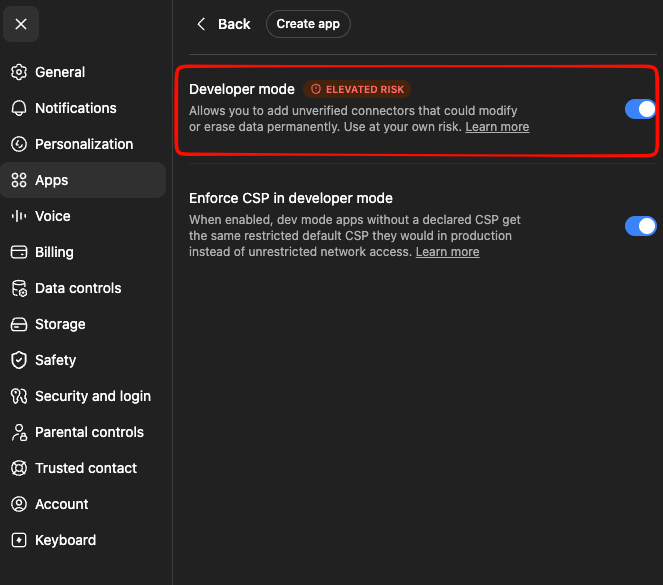
In Settings, open Apps, then Advanced settings, and turn on Developer mode.
-
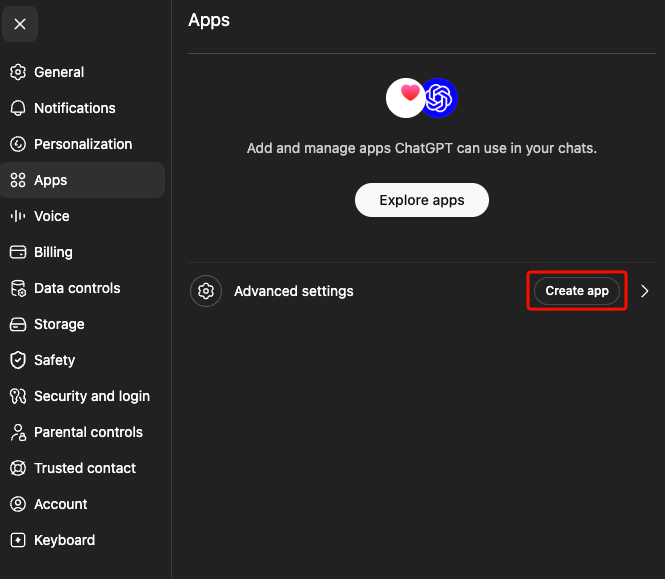
Go back to Apps and click Create app.
-
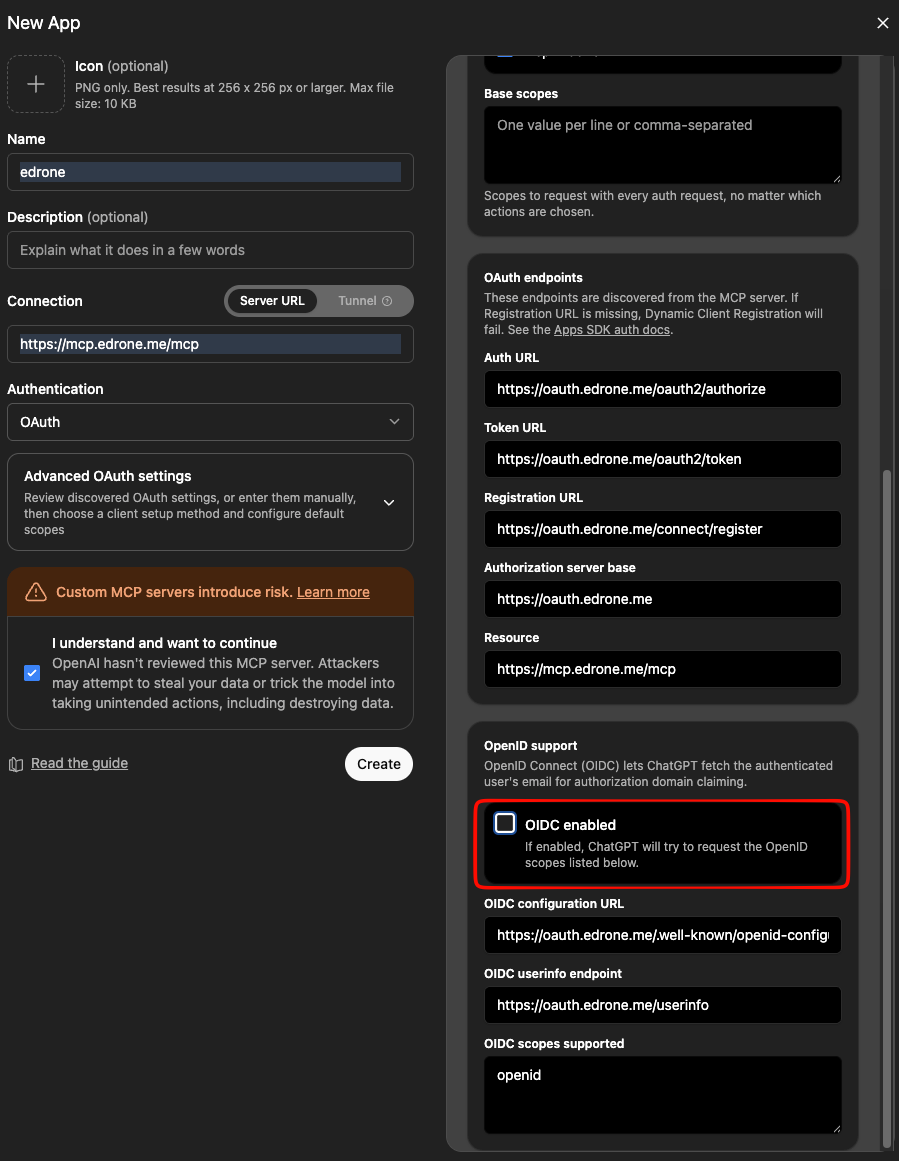
Set the name to
edrone, paste the MCP server URL into the Connection field, then click Advanced OAuth settings.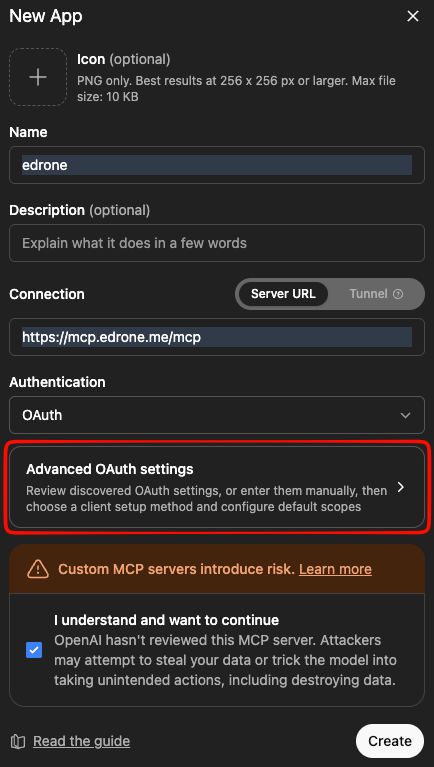
-
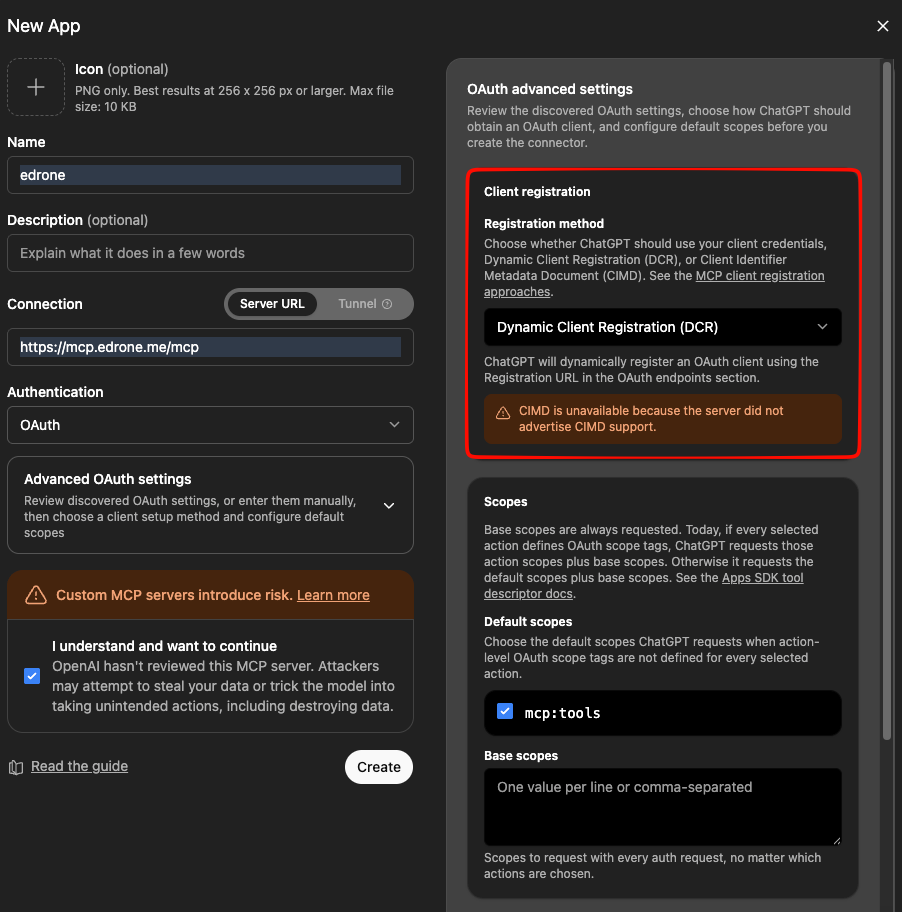
In the Client registration section, make sure Dynamic Client Registration (DCR) is selected.
-
In the OpenID support section, make sure OIDC enabled is turned off.
-
Click Create, then Sign in with edrone. You will be redirected to the edrone panel — approve the ChatGPT connection there.
-
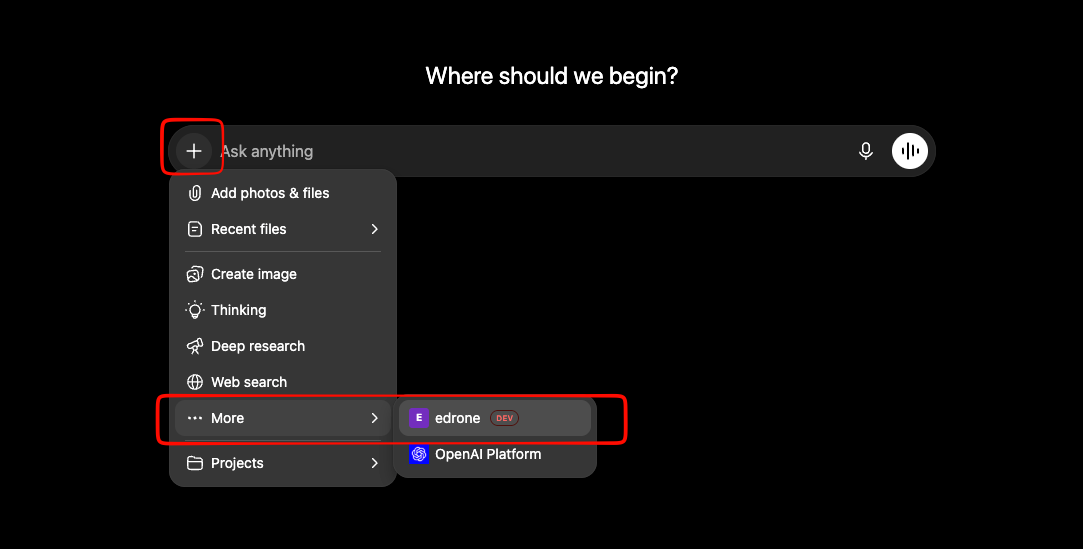
Verify that the edrone connector is connected — you'll find it in the + menu under More.
Claude
The connector you add will be available to everyone in your Claude organization.
-
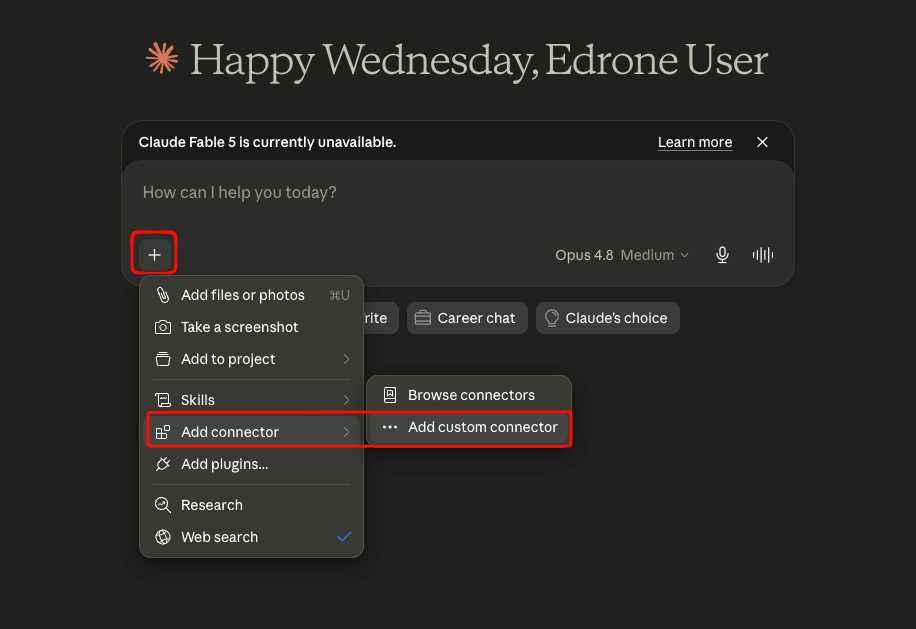
In Claude, click +, choose Add connector, then Add custom connector.
-
Enter the name
edroneand the Remote MCP server URL, then click Add.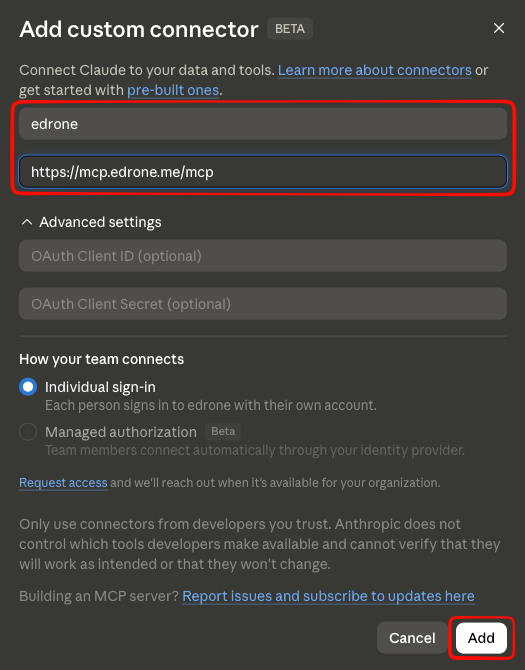
-
Open Settings, go to Connectors, and find the
edroneconnector.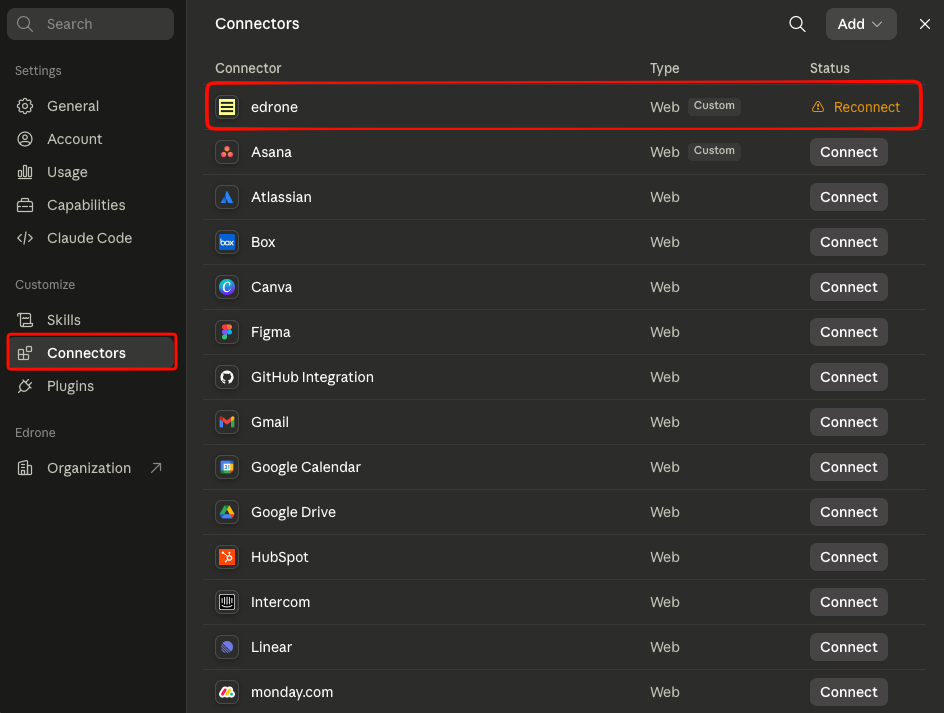
-
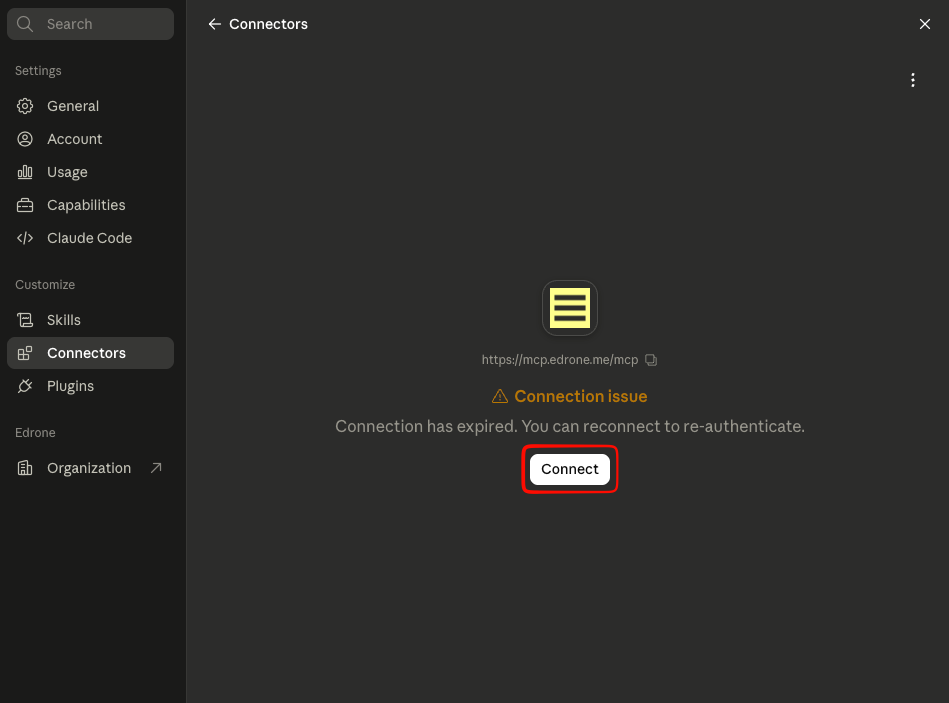
Click Connect. You will be redirected to the edrone panel — approve Claude's access to your edrone data there.
-
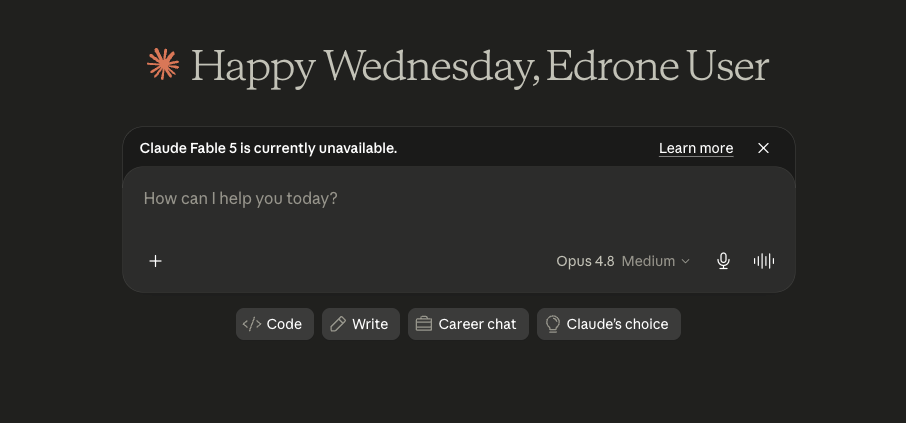
Verify that the edrone connector was added correctly and is enabled.
Perplexity
Adding a custom MCP connector in Perplexity requires a Pro or Max plan.
-
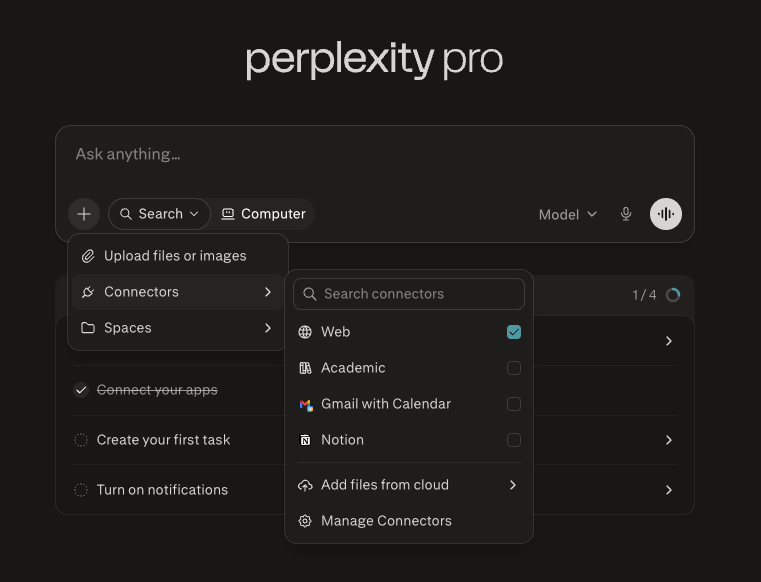
Open a chat, click the + icon, choose Connectors, then Manage connectors.
-
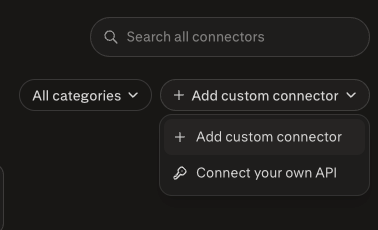
Click Add custom connector.
-
Fill in the connector details — set the name to
edroneand paste the MCP server URL.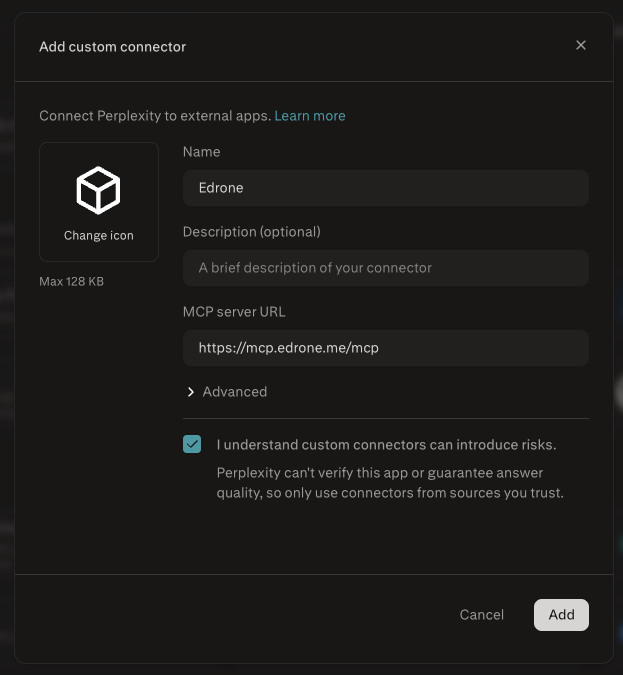
-
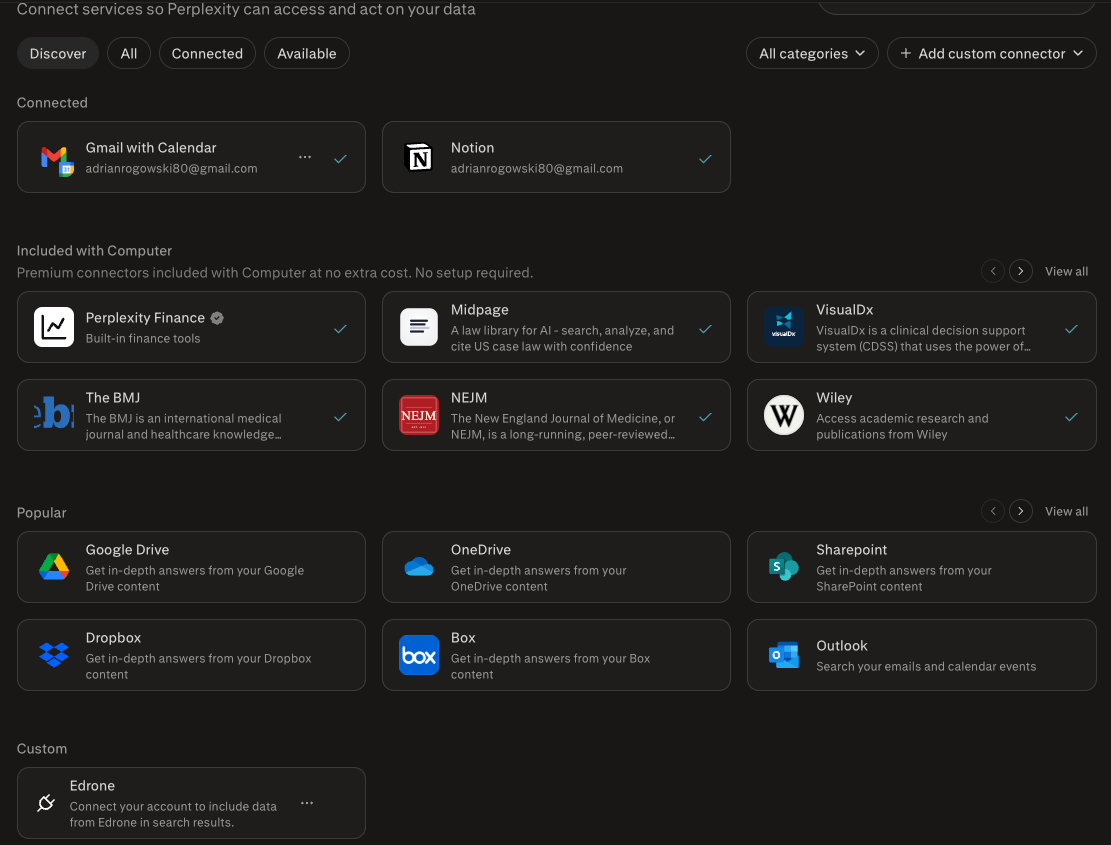
Go to Connectors, open the Custom tab, and connect the edrone connector. You will be redirected to edrone to sign in and approve access.
-
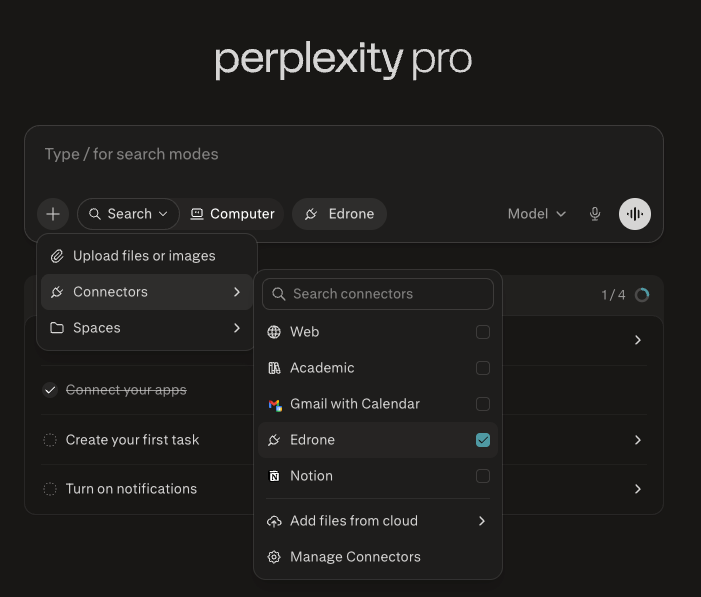
Verify that the edrone connector is enabled.
Other MCP clients
Any client that supports custom MCP servers over Streamable HTTP — for example Cursor — can connect. Point it at the MCP server URL above and complete the OAuth sign-in when prompted.
Troubleshooting
| Problem | What to check |
|---|---|
| Sign-in loop or "unauthorized" | Make sure you completed the redirect to the edrone panel and approved access. |
| ChatGPT cannot connect | Confirm Developer mode is on, DCR is selected and OIDC enabled is off. |
| Connector shows no tools | Disconnect and reconnect the connector so it re-runs authorization. |
| "Access blocked" | An administrator of your edrone account may have revoked access — see Security & privacy. |